Settings
The Settings module allows you to customize the appearance, behavior, and data management preferences of Xolmis. It is accessible in the main menu: File → Settings. Opening this option displays a dialog with a list of categories on the left. Each category contains specific settings that can be adjusted according to your workflow.
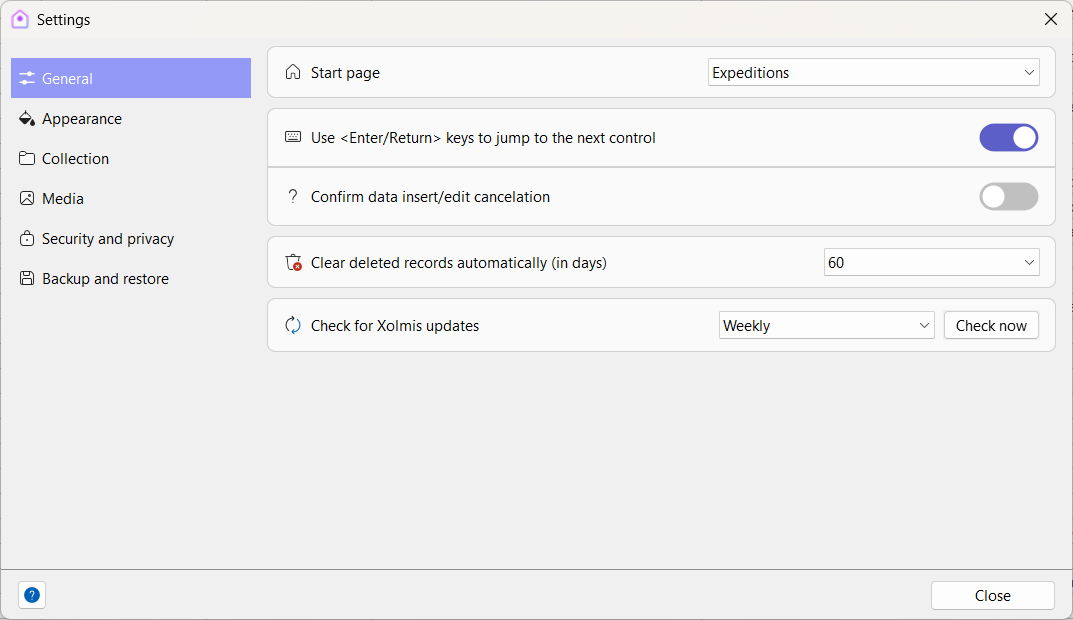
General
This section contains general system settings that affect the overall behavior of Xolmis.
| Setting | Description | Default |
|---|---|---|
| Start page | Defines which tab opens when Xolmis starts. | Coordinates converter |
| Use |
If enabled, Enter acts like the Tab key, moving to the next field. | Enabled |
| Confirm data insert/edit cancellation | Prompts a confirmation dialog when canceling data entry or editing. Useful if you often cancel by mistake. | Disabled |
| Clear deleted records automatically (in days) | Deleted records are kept in a "recycle bin" and permanently removed after the defined period. Can be set to Never. | 60 days |
| Check for Xolmis updates | Defines how often Xolmis checks for updates. | Daily |
Note
Deleted records remain inactive in the database until the configured period (30, 60, 90, or 120 days). If you do not want inactive records to be permanently deleted, set the option to Never.
Images, audio recordings, videos, and documents are always deleted permanently without being inactivated.
Appearance
This section controls the visual aspects of Xolmis.
| Setting | Description | Default |
|---|---|---|
| Theme | Choose between light or dark themes. The Auto option adapts to the operating system theme. | Auto |
| Auto size columns to fit the content | Data grid columns will always adjust their width to fit the content. | Enabled |
| Grid row height | Defines the row height in data grids. | 25 pixels |
| Use conditional formatting in grids | Highlights values in grids to indicate errors or groupings. | Enabled |
| Highlight outlier measurements in captures | If conditional formatting is enabled, highlights potential outliers in capture measurements. | Enabled |
Collection
This section manages how collected data is displayed and curated.
| Setting | Description | Default |
|---|---|---|
| Language of vernacular names | Sets the language of common names displayed in taxon search results. | English |
| Show synonyms in search results | If enabled, synonyms are shown in search results, but Xolmis always uses the accepted name. | Disabled |
| Default band supplier | If a band does not exist in the database when importing captures data, the band will be created using the default band supplier. | |
| Remember and pre-fill locality, observer and method when editing a new record | When inserting a new record, some fields will come pre-filled with the last values used for each field. | Enabled |
| Auto fill blank coordinates with gazetteer coordinates, if available | Fill coordinates with approximate coordinates from gazetteer if blank. | Enabled |
Media
This section defines how media files (images, audio, video, documents) are stored and managed.
| Setting | Description | Default |
|---|---|---|
| Media storage folder | Folder for storing images, audio recordings, videos, and documents. | %LOCALAPPDATA%\xolmis\storage\ |
| Image thumbnail cache | Shows the disk space occupied by image thumbnails, with an option to clear the cache. | |
| When adding media records | Behavior when adding an attached media file: move the file to the media storage folder or only copy it. | Copy media files |
| Delete file when deleting the media record | If enabled, deletes the file from the media storage folder when the media record is deleted. | Disabled |
| Open files after export | If enabled, opens exported files in the default application. | Disabled |
Security and privacy
This section contains settings related to login and technical support.
| Setting | Description | Default |
|---|---|---|
| Remember connection from last session | Loads the last used connection in the login dialog. | Enabled |
| Remember user from last session | Loads the last used username in the login dialog. | Enabled |
| Allow Xolmis to log events for technical support | Creates a log file of activities to help investigate problems. | Disabled |
| Enable detailed commands logging | Some internal commands are logged for troubleshooting. | Disabled |
Tip
If you experience errors or crashes, enable Allow Xolmis to log events for technical support. This will record technical details that can be sent to support. No personal or sensitive data is recorded or transmitted. If Xolmis is running smoothly, keep this setting disabled.
Backup and restore
This section manages backup and restore options for your data.
Backups are essential to protect against data loss and ensure that your ornithological records remain safe and recoverable.
| Setting | Description | Default |
|---|---|---|
| Backup files folder | Folder path where backup files are stored. | .\backup\ |
| Create backup when Xolmis closes | Defines if backups are created automatically when closing Xolmis. Options: Never, Daily, Weekly, Monthly | Weekly |
In addition to the automatic options above, two buttons are available for manual control:
Create backup
Immediately generates a backup of the current database and saves it in the folder defined in Backup files folder. Use this option before performing major edits, imports, or maintenance tasks to ensure you have a safe restore point.
Restore
Allows you to select a previously created backup file and restore it as the active database. This option is useful if you need to roll back changes, recover from corruption, or return to a known stable state.
Warning
Restoring a backup will replace the current database with the selected backup file. Always verify that the backup is correct before proceeding.
Tip
If you use a cloud drive (Google Drive, OneDrive, Dropbox, etc.), set a subfolder inside it as the backup folder. This way, backups will be synchronized automatically and kept safe.
Note
Currently, Xolmis does not manage backup storage. You must manually check storage usage and delete older backups if necessary. A more automated solution is planned for future versions.
Settings backup
Two options are available:
- Create settings backup: Saves a file containing the current settings.
- Restore settings: Replaces the current settings using a settings backup file.
Warning
Settings are not currently included in data backups, and settings backups are not created automatically. Settings must be backed up manually whenever necessary or desired.
Best practices
- Review settings periodically: Adjust preferences as your workflow evolves.
- Keep backups safe: Store backups in cloud drives or external devices.
- Use conditional formatting: Helps quickly identify errors or outliers in data.
- Avoid changing media paths: Prevent inconsistencies by keeping default media folders.
- Enable logging only when needed: Use technical logs for troubleshooting, not for routine use.
Relation to other modules
Settings affect the behavior of all modules in Xolmis:
- General – Controls startup behavior and record lifecycle.
- Appearance – Defines how data grids and reports are displayed.
- Collection – Influences taxon searches and data curation.
- Media – Manages how images, audio, and documents are linked to records.
- Security and privacy – Impacts login and troubleshooting.
- Backup and restore – Ensures data safety and recovery.
By configuring settings properly, researchers can tailor Xolmis to their workflow, ensuring efficiency, consistency, and data security.