Documents and links
The Documents and links feature allows researchers to attach external files or references to records in Xolmis. This ensures that supporting materials such as reports, datasets, presentations, or online resources are directly linked to ornithological data, making the database a comprehensive repository of information.
Toolbar
| Icon | Button | Function |
|---|---|---|
| Add document/link | Insert new documents from files or link URL | |
| View and edit document/link info | Edit the selected document or link info | |
| View document/link | Opens the selected document or link in the default application | |
| Delete document/link | Delete the selected document or link |
Adding documents
You can add documents in two ways:
- Using the add button
- Click the Add button and the option Add documents at the top toolbar of the documents and links side panel.
- Select one or more files to attach to the current record.
- Click Open to confirm.
- The system will show the progress of adding the files.
-
Drag and drop
- Drag files from your file explorer.
- Drop them directly into the documents and links side panel.
- The system will show the progress of adding the files.
-
Edit metadata
- If metadata is present (e.g., creation date), it will be automatically extracted.
- Link the documents to records using the dialog that opened.
- Other information must be edited manually afterwards.
This flexibility allows quick integration of documents into the database.
Adding link
- Click the Add button and the option Add link at the top toolbar of the documents and links side panel.
- Fill the metadata in the dialog that opened, and click the Save button.
Editing document or link info
To edit document or link information:
- Select the document or link in the side panel.
- Click the Edit button in the toolbar.
- A dialog will open with editable fields.
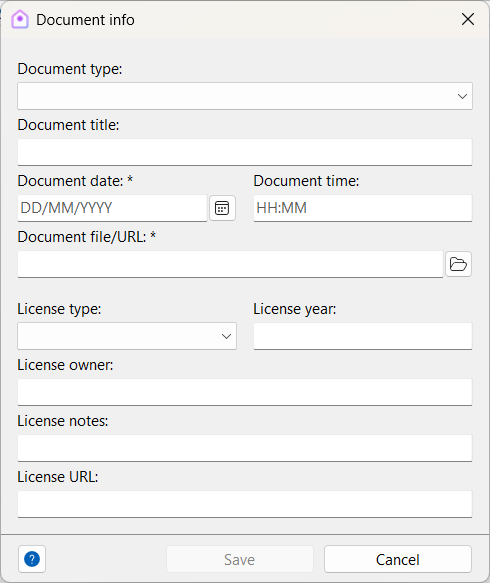
| Field | Required | Description |
|---|---|---|
| Document type | Type of document (see details below) | |
| Document title | Name or title given to the document | |
| Author | Person who created the document | |
| Document date | Yes | Date of creation of the document |
| Document time | Time of creation of the document | |
| License type | Type of license applied to the document | |
| License year | Year the document was licensed | |
| License owner | Rights holder of the document | |
| License notes | Additional notes about licensing | |
| License URL | Link to the license text |
Document types
Documents can be classified into the following types:
- URL – External web link (e.g., article, dataset, online resource).
- Document – Text documents and notes (e.g., DOC, TXT, ODT, Markdown).
- Spreadsheet – Data tables (e.g., XLSX, ODS, CSV).
- Presentation – Slides (e.g., PPT, ODP).
- PDF document – Portable Document Format files.
- Source code – Software source code files (e.g., Java, C, Pascal, Swift).
- Image – Photographs, diagrams, or figures.
- Audio file – Sound or voice recordings.
- Video – Video recordings.
- Database – External database files (e.g., DBF, SQLite, Access, DuckDB).
- GIS file – Geographic Information System files (e.g., shapefiles, KML, GeoJSON).
- Script – Script files (e.g., bash, SQL, Python, R, PowerShell).
- Webpage – Webpage files (e.g., HTML, CSS, PHP).
- Dataset – Interoperable dataset files (e.g., JSON, XML, RDF, DWC, Parquet).
- Statistic – Statistical dataset files (e.g., RData, SAV, FITS, DAT).
- Vectorial – Vectorial image files (e.g., SVG, Adobe Illustrator, Corel Draw, Affinity).
- Archive – Compressed files (e.g., ZIP, 7Z, TAR, GZ, RAR).
- Bibliography – Bibliographical files (e.g., Zotero, Mendeley, EndNote).
- Metadata – File or image metadata (e.g., EXIF, TDMS).
- Bioinformatic – Genetic and phylogenetic files (e.g., FASTA, Mesquite, GenBank).
- eBook – eBook documents (e.g., EPUB, Kindle, Apple Books, DJVU).
- Note – Note libraries (e.g., OneNote, Evernote).
- Other – Any other type not listed above.
License types
Licensing ensures proper use and sharing of images:
- Copyright – All rights reserved.
- CC BY – Creative Commons with attribution.
- CC BY-SA – Creative Commons with attribution and derivatives under the same license.
- CC BY-ND – Creative Commons with attribution and no derivatives.
- CC BY-NC – Creative Commons with attribution and no commercial use.
- CC BY-NC-SA – Creative Commons with attribution, no commercial use, and derivatives under the same license.
- CC BY-NC-ND – Creative Commons with attribution, no commercial use, and no derivatives.
- CC0 – Public domain (Creative Commons).
- Commercial – Custom license with contractual terms.
Best practices
- Set the documents location first: Avoid broken links by configuring the storage path before adding files.
- Use descriptive titles: Helps identify documents quickly in lists and reports.
- Record licensing information: Ensures compliance with copyright and data-sharing policies.
- Prefer relative paths: Keep documents organized in the designated media folder for portability.
- Link relevant resources: Attach reports, datasets, or references that complement the record.
- Use URLs for dynamic content: When referencing online resources that may be updated, prefer URLs instead of static files.
Relation to other modules
Documents and links can be attached in several modules:
- Projects – Add proposals, reports, or budgets.
- Permits – Attach scanned permits or authorization letters.
- Expeditions and Surveys - Attach maps, field notes, or supporting files.
- Sightings, Captures and Specimens – Link field notes, spreadsheets, or supporting files.
- Nests – Attach diagrams, measurements, or photographic evidence.
- Researchers – Store CVs, publications, or institutional documents.
By managing documents and links in Xolmis, researchers ensure that all supporting materials are organized, accessible, and directly connected to ornithological data.
Example workflow
- A researcher uploads a PDF report summarizing a survey.
- The file is attached to the Survey record in Xolmis.
- Licensing information is added (Creative Commons, year, owner).
- Later, another collaborator opens the survey record and directly accesses the report.
This workflow demonstrates how documents and links strengthen collaboration and preserve valuable context for scientific records.